
How to Install OptiFine in Minecraft
Learn how to install OptiFine in Minecraft to boost FPS, enhance graphics, and enable shaders. Follow this guide for quick setup and better…
Downloading OptiFine
-
Go to the Official OptiFine Website
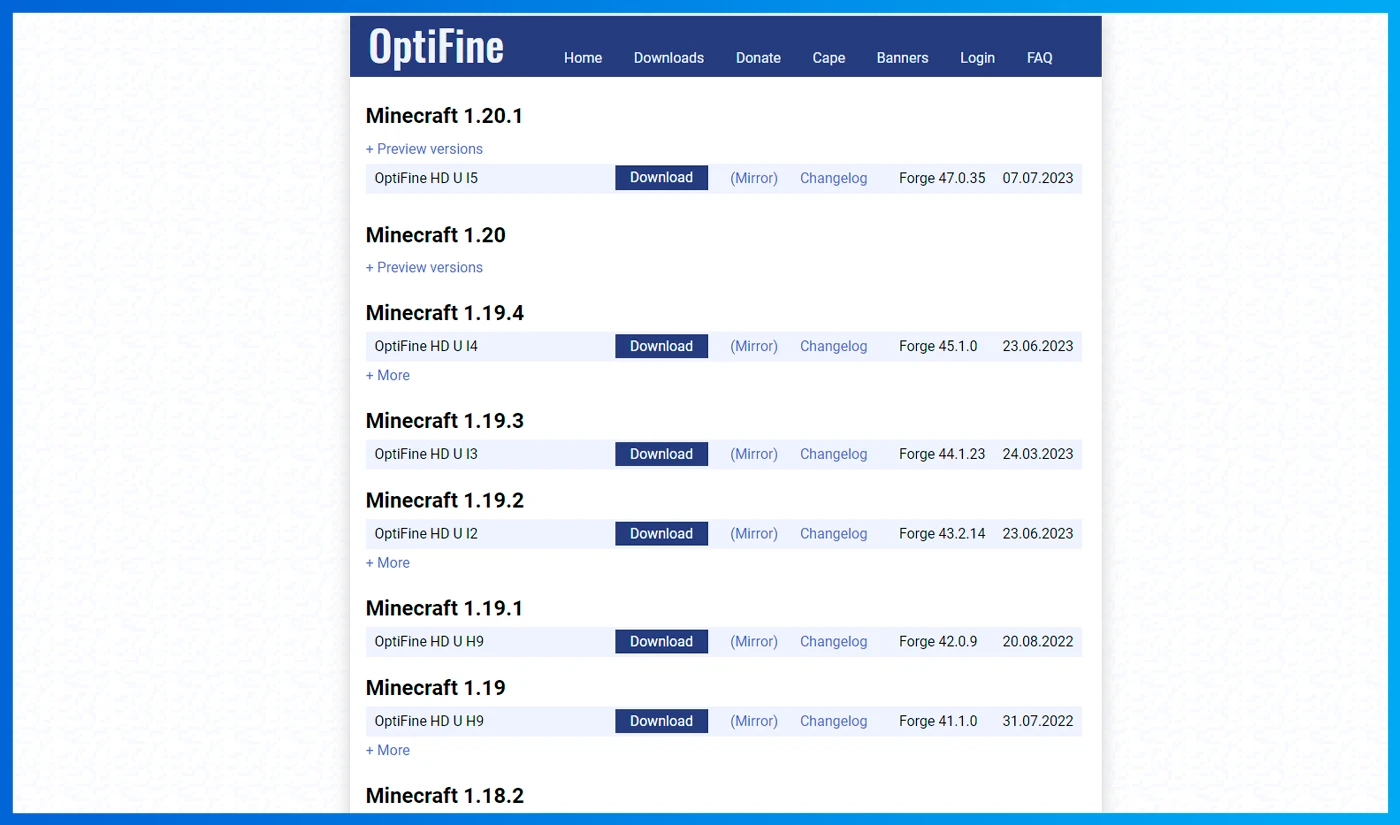
On the homepage, you’ll see a button labeled "Show all versions." Click it to display different versions of OptiFine for various Minecraft versions. Choose the OptiFine version that matches your Minecraft version. Pay attention to the version number, such as "1.20" or "1.20.1," and select the corresponding OptiFine version. -
Find and Click “Mirror” or “Download”
On the download page, look for a link with the text "Mirror" or "Download." Click this link to start downloading OptiFine. During the download, you’ll be redirected to an ad page; simply click "Skip" and then press the download button again to proceed.
Installing OptiFine
Once the download is complete, you’ll have a file with a “.jar” extension. You’ll need to open this file to install OptiFine.
Run the OptiFine File
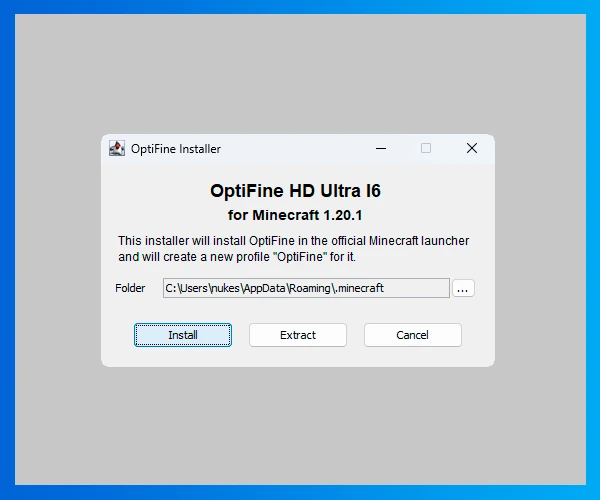
Double-click the OptiFine file to launch the installer. The OptiFine installer window will appear.
Click “Install”
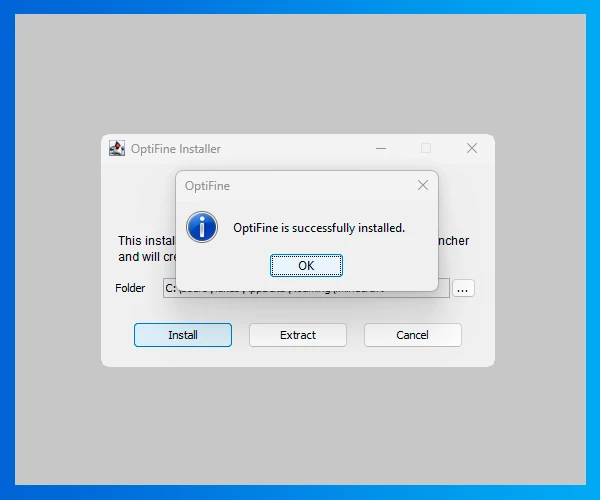
In the installer window, select "Install" and wait for the installation to complete. Make sure the installer sets OptiFine to the correct Minecraft folder. After successful installation, you’ll see a confirmation message.
If you can’t run the installer file, you may need to install Java on your computer.
Launching Minecraft with OptiFine
Now, to use OptiFine, open the Minecraft Launcher.
Select OptiFine in the Launcher
In the launcher, go to "Settings," then select the version with OptiFine.
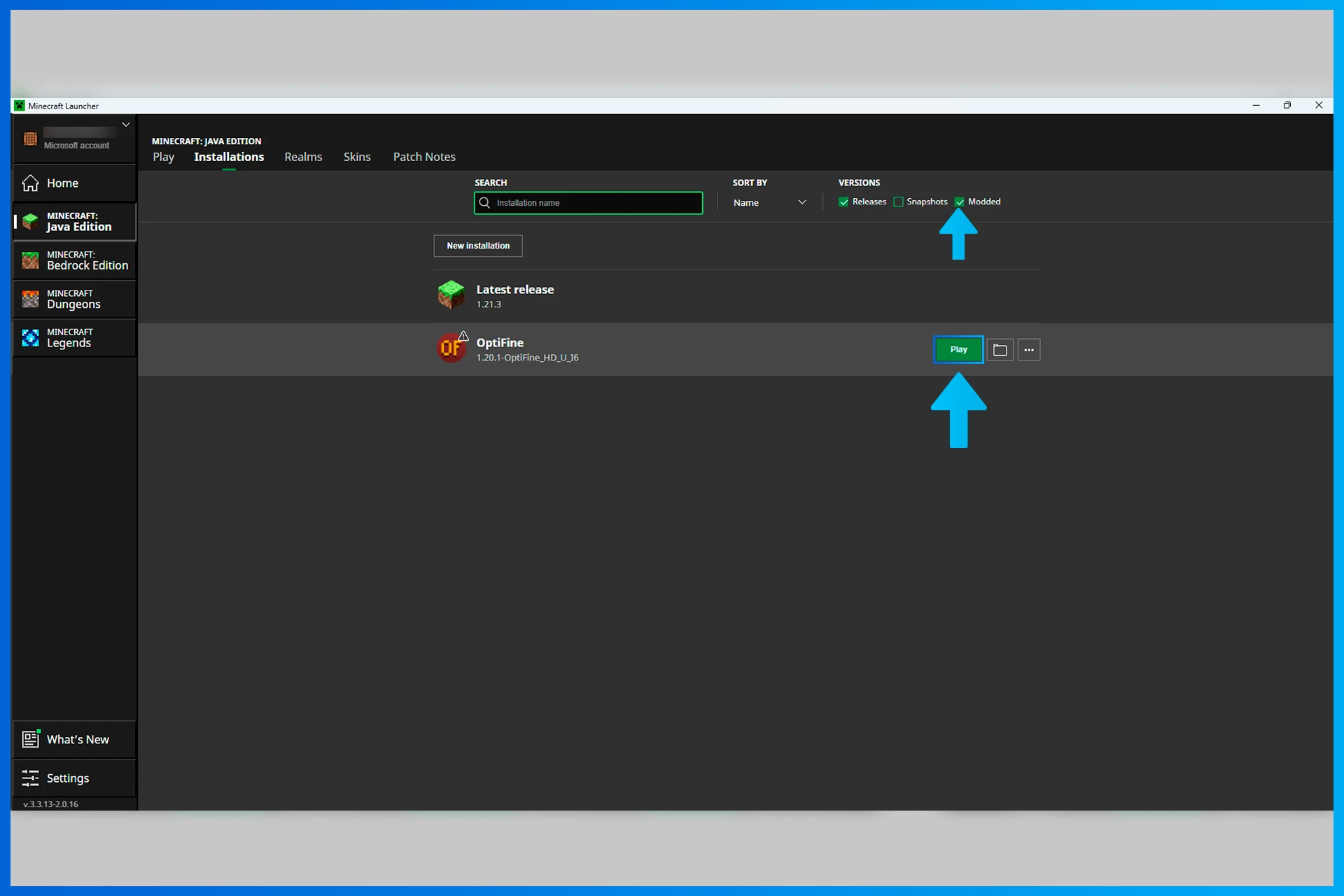
Now you can start Minecraft with OptiFine installed and enjoy enhanced graphics and performance. OptiFine also offers additional in-game graphics settings that you can customize to your preference.
konknlojknojko;jkno